Troubleshooting IQFeed
Three ways to see what IQFeed and AmiBroker are doing when a backfill hangs or the data looks wrong
Occasionally an exploration's backfill from IQFeed hangs in AmiBroker and never completes. Sometimes clicking the stop button and restarting the exploration fixes it. Other times it gets stuck in the same place on every attempt, and you watch trades pass you by.
At first glance the IQFeed/AmiBroker integration looks like a black box, but there are good tools for seeing what's going on. Start with the first one below and go deeper only if you need to.
1. The backfill status window
AmiBroker has a backfill status window that is easy to miss: it sits alongside AmiBroker in the taskbar. Bring it up, then click Details.
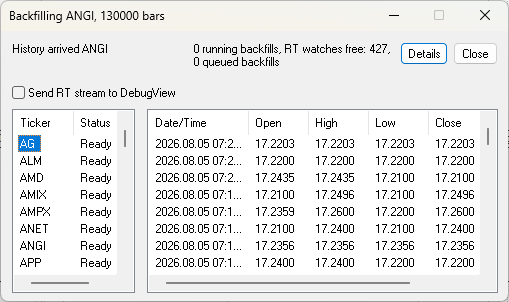
This lists the backfills and real-time "watches" (Level 1 feeds) in progress. Click a symbol to see the data received for it (AG is selected above).
Scroll down through the tickers. A status of Ready is good. When the backfill is stuck, you can often narrow it down to a single ticker with a status of Backfilling that is causing the problem.
When you're running an exploration in Auto-repeat mode during real-time trading, you won't be watching this window when it starts hanging. A dead-man timer tells you when it does.
2. DebugView
DebugView is a simple, free tool from Microsoft that collects the "debug" messages programs on a Windows machine send. Developers normally use these to troubleshoot their own applications, and AmiBroker can send its IQFeed data stream there for low-level debugging.
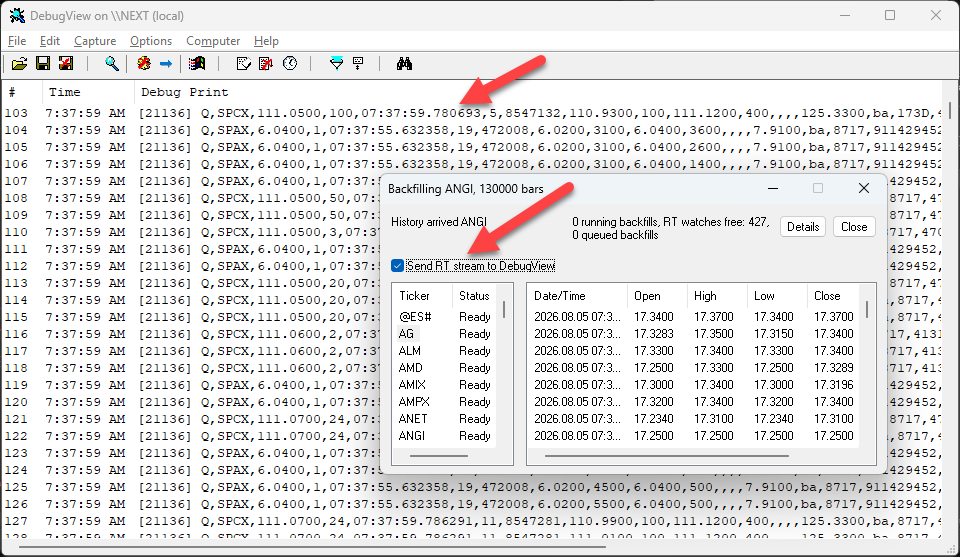
In the backfill status window, check Send RT stream to DebugView. If DebugView isn't installed and running, the checkbox does nothing. With it running, you'll see the stream of messages flowing into DebugView, where you can view, save and filter them.
Below, DebugView is running with the box checked, showing the trade messages flowing from IQFeed into AmiBroker (the first one is a tick in SPCX).
3. IQFeed's diagnostics
When you need to go deeper still, IQFeed comes with its own diagnostic tools. These work within IQFeed itself, whatever client application is reading the data.
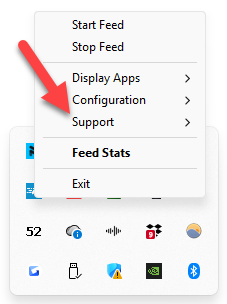
Right-click the IQFeed Connection Manager icon in your taskbar, choose Support, then Diagnostics.
This opens the IQFeed Diagnostics Utility. On its Logging tab you can have IQFeed log:
- Level 1 requests
- Lookup requests (historical requests)
- System messages
- The data returned for each request type
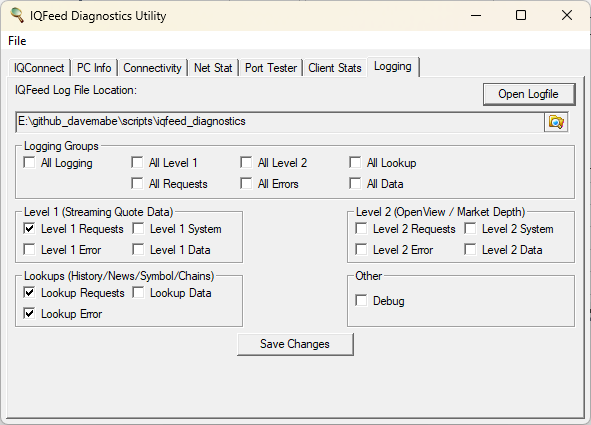
Be careful: logging data quickly uses a lot of disk space. I created a 51GB file troubleshooting bad tick data. Turn the logging off when you're done.
For how I backfill my backtesting database, see Backfilling Historical Data with IQFeed.