Crunch Settings
What each setting on the confirm screen does and when to change it
After you upload a file, the confirm screen shows what the Strategy Cruncher found in it and the settings for the search. The defaults are a good place to start. This page explains each setting and when to change it.
The confirm screen starts from the defaults every time, including when you get there with Apply this filter. If you changed a setting for your last crunch, change it again.
The file
The top of the screen shows the File Name, the number of Lines in it and the Backtest Type the Cruncher detected. If the backtest type isn't your platform, check that you exported the right file. See Supported Backtest Types.
You can change the Name here. It's what you'll see in your optimization list and at the top of the report.
Optimize On
What the search tries to improve.
- Profit (default): looks for rules that separate your profitable trades from your unprofitable ones, weighed by how much each trade made or lost.
- Win Rate: looks for rules that separate your winning trades from your losing ones, however big or small each one was.
Use Profit unless you have a reason not to.
Aggression Factor
The smallest share of your trades, in percent, that each side of a rule must hold. The default is 33, so neither the trades a rule keeps nor the trades it drops can be less than a third of your backtest.
The name reads backwards: a higher number is more cautious, and a lower number lets the search find smaller groups of trades.
- Use a higher number on a new strategy with lots of trades, where large groups of poor trades can go.
- Use a lower number on a mature strategy, to trim smaller groups of poor trades while keeping your total profit.
See Aggression Factor for more.
Search Mode

- Standard (default): the first ten rules found, in the order they were found. Use this most of the time.
- Keep Most Trades: only rules that keep more trades than they remove, up to twenty, best MabeKit Score first.
Try Keep Most Trades when every rule in a Standard report throws away more trades than it keeps, or when your strategy is already working and you only want to trim it. If no rule manages to keep more than it removes, the report says so and lists the ones that came closest.
Filters
Filters are rules applied to your trades before the search. Only trades that meet every filter are crunched.
When you click Apply this filter on a report, you come back here with that rule already filled in. Rules the report already had are listed under Inherited from parent optimization.
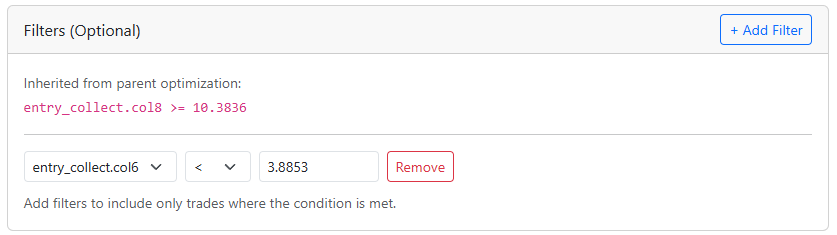
You can also add your own with + Add Filter: pick a column, a comparison and a number. The report lists each filter under Applied Filters with how many trades were left after it.
Apply one new rule per crunch. Each rule on a report was measured on its own, so the report can't tell you how two of them would work together.
Column Selection
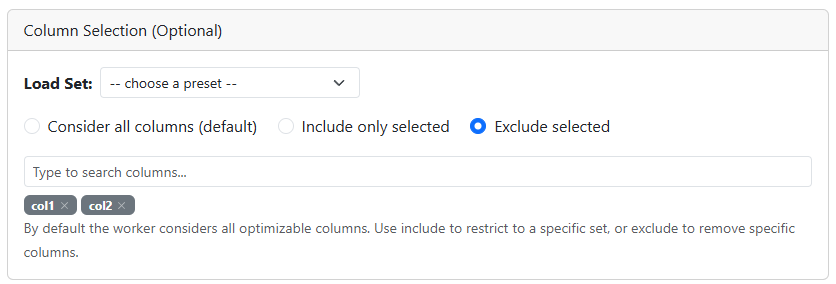
By default the Cruncher searches every column it can use. You can narrow that down for the next crunch:
- Consider all columns (default): search everything.
- Include only selected: search only the columns you pick.
- Exclude selected: search everything except the columns you pick.
Type in the search box to find a column and click it to add it.
When to use it:
- The top rules are all one idea, like the same gap measured three ways. Exclude those columns to see what else is there.
- The top rules are all about the market, like columns built on SPY, QQQ or VXX. They describe the market's day, not the stock's setup. Exclude them to see what the stock's own columns say. A market filter can still be a real edge, so this is a way to see more, not a judgement on them.
- A column you believe in didn't show up. The report only lists the strongest rules, so it may have been outranked. Include only that column, or a small group around it, to see how it does without the competition.
Columns must hold numbers. If you include a column that holds text, like a Y/N flag, it's left out of the search
and the report warns you.
Column Sets
If you make the same selection often, save it on the Column Sets page in the account menu. On the confirm screen, Load Set applies a saved set and switches to Include only selected. Switching to Exclude selected afterwards keeps the loaded columns, so one set works both ways.
Asking Claude
If you've connected Claude to the Strategy Cruncher, it reads the settings each report was run with and will suggest what to change for your next crunch:
What settings should I use for my next crunch on this strategy?