Backfilling Historical Data with IQFeed
Fill a local AmiBroker backtesting database with IQFeed bars using the IQFeed Backfill Tool and an ASCII import, step by step
Although you can use Massive data to import into AmiBroker, IQFeed is a better choice, simply because it's so much faster.
Two databases
I keep two AmiBroker databases, and they get their data in different ways:
- The real-time database is connected to IQFeed through the AmiBroker plugin, for now. It's the one I trade from.
- The backtesting database is a local database, with no data plugin. Its data comes only from files I import with File > Import ASCII...
The IQFeed Backfill Tool makes those files. It downloads bars from IQFeed into a folder of CSV files, one per symbol, then merges them into a single import file for AmiBroker.
Remember, this is the backtesting database: you don't need the most up to date data every time you run a backtest. Its data changes only when you import, so it doesn't change in the middle of a backtest.
The tool and its demo video are on the IQFeed Backfill Tool page. It needs IQFeed installed with a valid login, and a recent version of AmiBroker, preferably 7.0 or later. It starts IQConnect for you if it isn't already running.
Before you start
Pick folders without spaces
You need two folders: one for the program and one for the downloaded CSVs. For example:
E:\IQFeedBackfillfor the programE:\IQFeedBackfill\barsfor the CSVs
Extract the zip into the program folder. Avoid spaces in folder names. In a command, a space separates one setting from the next, so a path like E:\Ami data Bfill gets read as three separate things. If a path must have spaces, put it in double quotes: --data-dir "E:\Ami data Bfill\bars".
Install the AmiBroker import format (once)
AmiBroker needs to be told how to read the import file. The zip has an AmibrokerFormats folder:
- Copy
mabekit_intraday.formatandmabekit_daily.formatfrom it into AmiBroker'sFormatsfolder, normallyC:\Program Files\AmiBroker\Formats. - Open
C:\Program Files\AmiBroker\Formats\import.typesin Notepad, add these two lines at the end and save:
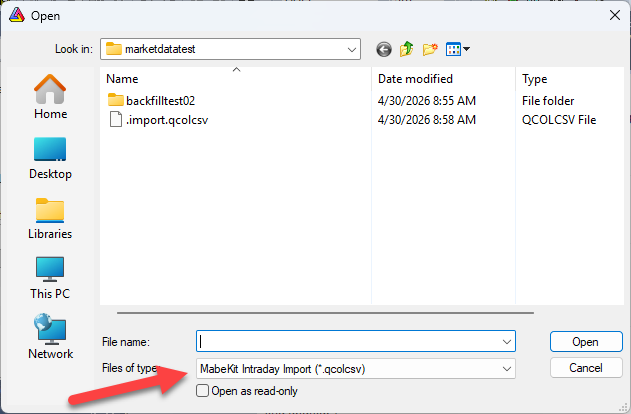
MabeKit Intraday Import (*.qcolcsv)|*.qcolcsv|mabekit_intraday.format
MabeKit Daily Import (*.qcolcsv)|*.qcolcsv|mabekit_daily.format
Windows may ask for administrator permission to save in C:\Program Files. If AmiBroker is open, restart it.
Create the backtesting database (once)
- In AmiBroker, choose File > New > Database.
- Pick a folder for the database, e.g.
E:\AmiData\backtest01. This is a different folder from the CSVs. - Click Create. Set Data source to (local database), not the IQFeed plugin.
- Set Base time interval to 1 Minute.
- Click OK.
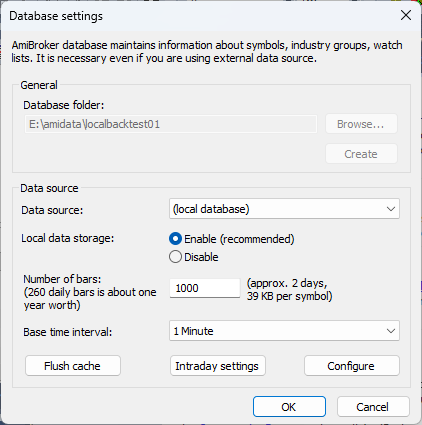
The base time interval matters. A database created as End-of-day (EOD) stores the bars as daily ones: charts show only daily bars and the intraday intervals are greyed out. Changing the setting later doesn't bring back the minutes already imported, so if that happens, create a new database with 1 Minute and import again.
Get the symbol list
Follow the Symbol List Update Script and update the symbol list in the backtesting database. It also writes .normal.tls, the list of symbols the full backfill below downloads.
Opening PowerShell in the right folder
Every command below assumes PowerShell is open in the program's folder:
- In File Explorer, open the folder with
iqfeedbackfill.exein it. - Right-click an empty spot and choose Open in Terminal. On older Windows versions, Shift + right-click and choose Open PowerShell window here.
- The prompt shows the folder, e.g.
PS E:\IQFeedBackfill>.
The .\ at the start of each command means "the program in this folder". PowerShell requires it. Without it you'll see an error that the command isn't recognized.
Each command is one line. Paste it whole and press Enter.
Step 1: Download a few symbols
Practice the whole process on a few symbols first. The full backfill takes hours, so make sure everything works before you start it.
.\iqfeedbackfill.exe --symbols AAPL,MSFT,SPY --barsize 1 --start-date 20250101 --data-dir E:\IQFeedBackfill\bars
Replace 20250101 with the first day you want (YYYYMMDD). Without it you get one year.
It prints a line per symbol, like:
[3/3] Backfilled SPY from 2025-01-02 to 2026-11-13 (183455 bars) | ...
When it prints === Backfill complete, the folder has AAPL_1.csv, MSFT_1.csv and SPY_1.csv.
Step 2: Make the import file
Run the program again with --import. This pass doesn't download anything:
.\iqfeedbackfill.exe --import --barsize 1 --data-dir E:\IQFeedBackfill\bars --import-file E:\IQFeedBackfill\all.qcolcsv
Use the same --data-dir as in step 1. It writes all.qcolcsv, every bar from the CSVs in one file.
Step 3: Import into AmiBroker
- With the backtesting database open, choose File > Import ASCII...
- In the Files of type dropdown at the bottom, choose MabeKit Intraday Import.
- Open
E:\IQFeedBackfill\all.qcolcsv.
Open an SPY chart and switch it to 1 minute to check the bars start from your start date.
The full backfill
Use the same download command with the symbol list instead of --symbols:
.\iqfeedbackfill.exe --symbol-file E:\symbol_list_update\.normal.tls --barsize 1 --start-date 20160101 --data-dir E:\IQFeedBackfill\bars
Then, before step 2, delete the old import file (E:\IQFeedBackfill\all.qcolcsv), and run steps 2 and 3 again.
Why: the --import pass only writes bars newer than the last bar in the existing import file, and it uses that one date for every symbol. After the test, that date is the end of your test. Without deleting the file, every new symbol gets only the bars after it, often none, and charts in AmiBroker won't scroll back further. If that has already happened, delete the file, make it again and import it again. Bars already in the database are replaced, not doubled.
Leave PowerShell open until it prints === Backfill complete, and keep the PC from going to sleep.
Keeping it up to date
Keep using the tool and the import file to add new days, the same three steps as the first backfill. The backtesting database is a local database, so AmiBroker's IQFeed plugin never backfills it: the plugin's backfill only fills the real-time database.
- Download: run the same download command without
--start-date. Each symbol starts after the last bar in its CSV, so only the new bars are downloaded.
.\iqfeedbackfill.exe --symbol-file E:\symbol_list_update\.normal.tls --barsize 1 --data-dir E:\IQFeedBackfill\bars
- Make the import file: run the same
--importcommand with the same--import-file. It writes only the bars added since the last import file, so it's much smaller. When you add symbols, or download earlier dates, delete the old import file first, as above.
.\iqfeedbackfill.exe --import --barsize 1 --data-dir E:\IQFeedBackfill\bars --import-file E:\IQFeedBackfill\all.qcolcsv
- Import: import that file into the same backtesting database, as in step 3: File > Import ASCII..., MabeKit Intraday Import, and open
E:\IQFeedBackfill\all.qcolcsv.
The beauty of this is that these two commands never change. You don't edit a date or a symbol each day: every run picks up where the last one stopped. So you can save them in a batch file and run it whenever you want to update, and it downloads and writes only the new bars. All that's left is the import in AmiBroker.
A symbol whose last bar is already from today is skipped, so run the download after the day's session is over. To download today's bars again anyway, add --same-day.
When something doesn't work
The program writes everything it prints to iqfeedbackfill.log, in the folder you ran it from. Every run adds to the end of it.
- A symbol failed to download: its line says
ERROR. Run the same download command again: symbols that are already up to date are skipped, and the rest pick up after their last bar. - "Invalid date format" in AmiBroker: choose MabeKit Intraday Import in Files of type when importing, not the default format.
- MabeKit Intraday Import isn't in the dropdown: the format setup above hasn't been done. Check the two files are in the
Formatsfolder, and restart AmiBroker after editingimport.types. - No data on a chart after the import: check that the database's base time interval is 1 Minute (File > Database Settings) and that the chart's date range covers the imported dates. Window > Output shows the import log.
For a backfill hanging in the real-time database, see Troubleshooting IQFeed.
Here's a video demonstrating the tool: