Amibroker to Trade Client Code
Describes the code and process to send signals from Amibroker to the Trade Client
To send trade signals to the Trade Client automatically from Amibroker, you need to add some code to your AFL file.
This code will run during an exploration, i.e. clicking the Explore button instead of the Backtest button in an Amibroker Analysis window.
The basic idea is you'll run the exploration in real-time, with the Wait for Backfill option selected in the analysis window.

If there's a trade signal in the most recent bar for a stock, this code block will be entered.
Importantly, the trade signal will only be generated once per day per symbol (see the use of StaticVarSet and StaticVarGet to accomplish this).
This code uses fappend which is introduced in Amibroker 7.00 (currently in beta, but stable enough to use).
Note that this snippet is a demo - you almost certainly will have to modify it for your needs in your own strategy.
// Trigger should be defined in your code at this point
key_for_signal = StrategyCode + "_" + Name() + "_" + NumToStr(DateNum());
LoggedAlreadyToday = Nz(StaticVarGet(key_for_signal));
Write_Signal_File = 1; // true here, but you could optionally make this a Param at the beginning of the file

if (Write_Signal_File AND LastValue(Trigger) AND NOT LoggedAlreadyToday AND LastValue(BuyPrice))
{
	signal_buy_price = LastValue(BuyPrice);
	signal_shares = LastValue(ShareSize);
	signal_stop_price = LastValue(StopPrice);
	signal_target_price = LastValue(TargetPrice);
	signal_open_price = LastValue(O);
	signal_close_price = LastValue(C);

	// Append to the file - make sure the folder exists on your machine
	Signal_file = "e:\\temp\\signal_file.csv";

	Now_timestamp = Now();
	last_bar_timestamp = DateTimeToStr(LastValue(dt));

	line_to_append = Now_timestamp
		+ "," + last_bar_timestamp
		+ "," + Name()
		+ "," + signal_buy_price
		+ "," + signal_shares
		+ "," + signal_stop_price
		+ "," + signal_target_price
		+ "," + signal_open_price
		+ "," + signal_close_price
		+ ",match\n";

	// fappend is available in Amibroker 7.00 and beyond
	fappend(Signal_File, line_to_append);
	StaticVarSet(key_for_signal, 1);

	// This will play a sound when something is written to the file
	AlertIf( True, "SOUND C:\\Windows\\Media\\chimes.WAV", "", 0 );
}
Any information required to create your entry and exit orders (the "Trade Setup" in Trade Client) should be added to the line_to_append variable to be added to the file.
Once you get the process working by clicking the Explore button manually, you can enable the Auto-Repeat settings to run the exploration automatically on a regular basis:
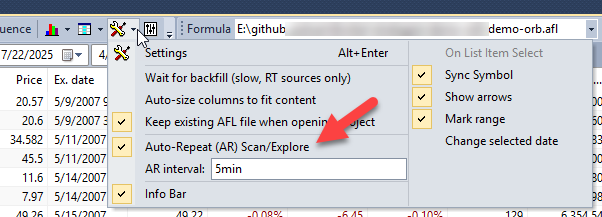
At this point, you can configure the Trade Client with a new strategy to point the file you created (the Signal_File variable in the snippet above.)