Using Trade-Ideas for Real-Time Trading in Amibroker
How Trade-Ideas can be used to make Amibroker lightning fast for real-time trading
The Problem Trade-Ideas Solves for Amibroker
When you backtest in Amibroker, time is not of the essence. Once you optimize a strategy and are ready to trade it live, you'll find that scanning the entire market in Amibroker in a lot of cases takes too long to generate the signal.
By the time the exploration finishes, the opportunity might have already passed by.
Using Trade-Ideas can reduce your universe of symbols to a very small number (this is exactly what Trade-Ideas is great at), allowing your Amibroker exploration to complete very quickly.
Enable Alert Logging in Trade-Ideas
To sync Trade-Ideas alerts with Amibroker, you need to enable Alert Logging on your top list windows. Right-click on any top list window and check the "Alert Logging" option:
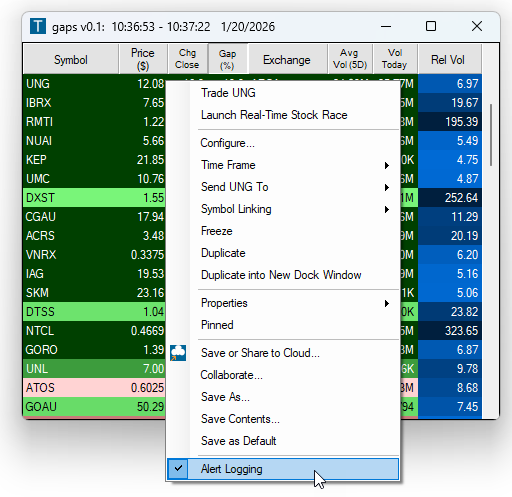
This works for Alert windows or Toplist windows in Trade-Ideas.
The Difference Between Alert and Toplist Logging
By their nature, alerts and toplists are different. The alert windows generate events that occur in the market.
The top list windows generate real time lists depending on your criteria.
When an alert comes into an alert window in Trade-Ideas and logging is enabled, it will immediately append a line to the log file with all information displayed in the window for the specific alert.
The Top List windows in Trade-Ideas refresh every 30 seconds with the current list. When logging is enabled for a Top List window, the entire contents of the CSV is replaced with the current list.
Both of these windows can be used to populate Watchlists in Amibroker.
The sync_watchlists.afl Amibroker Script
The sync_watchlists.afl file in the download above allows you to sync the symbols from the CSV files that Trade-Ideas generates with watch lists in Amibroker.
Then, in your strategy's exploration in Amibroker, you can use the Filter option in the Apply to section to restrict the universe to a specific watchlist that is synced with the CSV file from Trade-Ideas.
Required Modifications to the sync_watchlists.afl Script
Starting on line 26 of the sync_watchlists.afl file you'll see the following lines:
// Controls watchlist/file definitions
// symbolListIds = comma delimited list of watch list ids in Amibroker
//   e.g. 2,4 would sync the first file with watch list with id 2 and the second file
//   with watchlist 4
// symbolListFilenames = comma delimited list of window names from the Trade-Ideas alert/toplist
// symbolColumnPositions = column number corresponding to the Symbol column in the Trade-Ideas CSV file
symbolListIds = "2,4";
symbolListFilenames = "ironvelvet_0.1,gaps v0.1";
symbolColumnPositions = "2,1";
tradeIdeasFolder = "c:\\users\\davem\\documents\\TradeIdeasPro";
You'll need to modify these lines to customize the behavior for your situation.
The first thing you'll need to do is change the tradeIdeasFolder variable to match the path on your system.
The three other variables in this section are comma delimited strings. Each variable should have the same number of entries in it. In the example, it's set up to watch two different Trade-Ideas windows:
- An alert window with the name
ironvelvet_0.1 - Another alert window with the name
gaps v0.1
You can see this specified in the symbolListFilenames line:
symbolListFilenames = "ironvelvet_0.1,gaps v0.1";
In this case, it's watching for files like (where YYYYMMDD is the current date):
c:\users\davem\documents\TradeIdeasPro\ironvelvet_0.1.YYYYMMDD.csv
c:\users\davem\documents\TradeIdeasPro\gaps v0.1.YYYYMMDD.csv
The symbolListIds variable tells the script which watch list in Amibroker to sync to.
In this case, the ironvelvet_0.1 window will be synced with watch list 2 and the gaps v0.1 window will be synced with watch list 4:
symbolListIds = "2,4";
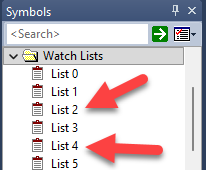
The symbolColumnPositions variable tells the script which column is the Symbol column in the CSV file (since you can reorder columns in your Trade-Ideas windows)
symbolColumnPositions = "2,1";
Running the sync_watchlists.afl Script
You'll need to dedicate an analysis window to run sync_watchlists.afl. The good news is it takes up a negligible amount resources to run.
Set up your analysis window to:
| Setting | Value |
|---|---|
Apply To |
*Current |
Range |
1 recent bar |
Wait for Backfill |
Disabled |
Formula |
Local Path to sync_watchlists.afl |
Once configured, run an exploration by clicking the Explore button.
You should see the symbols in your watch lists if you've configured it properly and the CSV files exist.
Once you get this far, you can set up the Auto-repeat feature in the Analysis window, so it repeats every X seconds (5 is usually fine).